Create
Generate videos
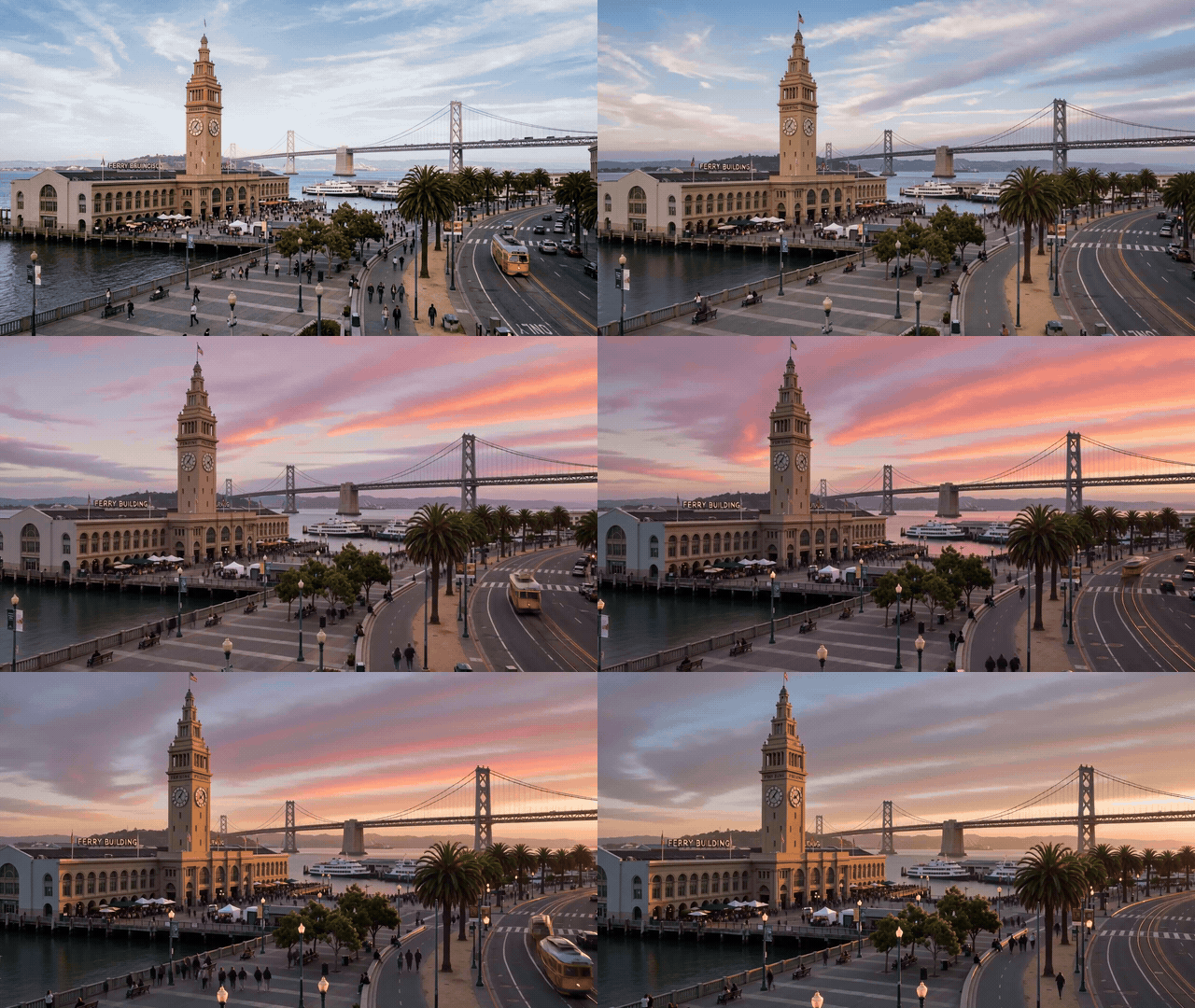
Direct the action and camera movement, starting from an image you already like.
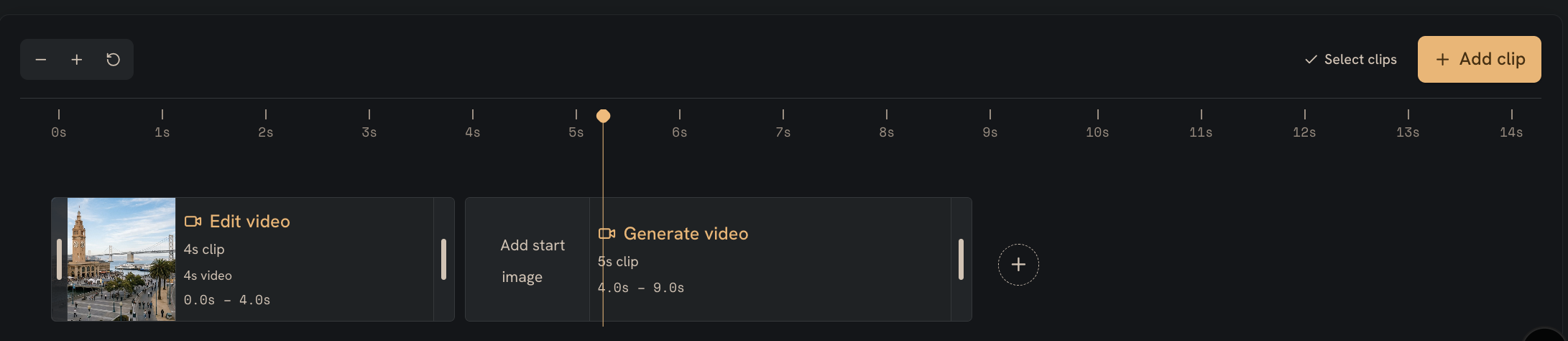
The video timeline editor
- Video
- Generate video
Use the video timeline editor to build your sequence. Add or remove clips, trim their start and end points, and rearrange them on the timeline.
Click ‘Generate video’ to open the panel on the right, where you choose your inputs, model, and prompt.
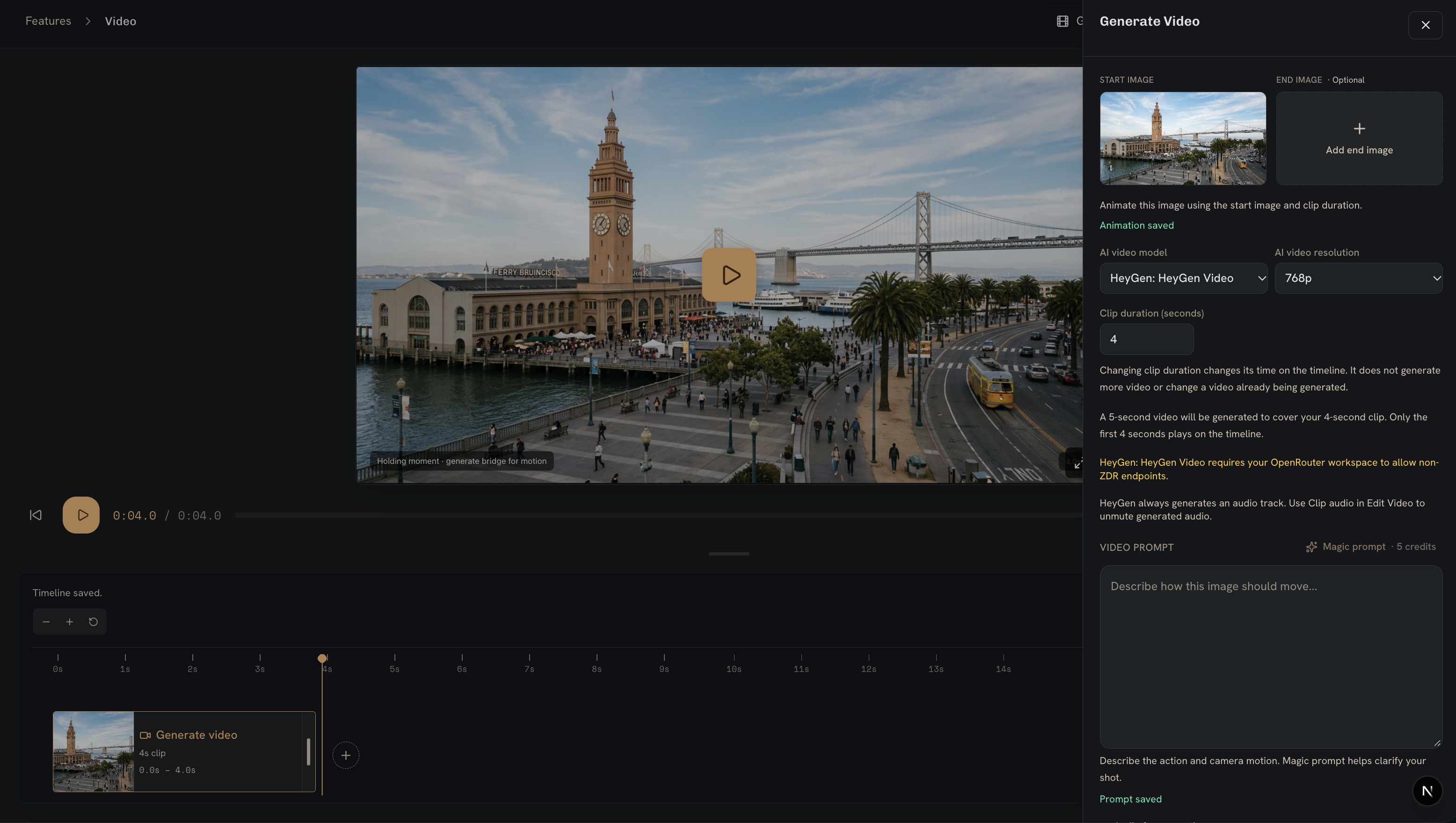
Choose your inputs
- Video
- Generate video
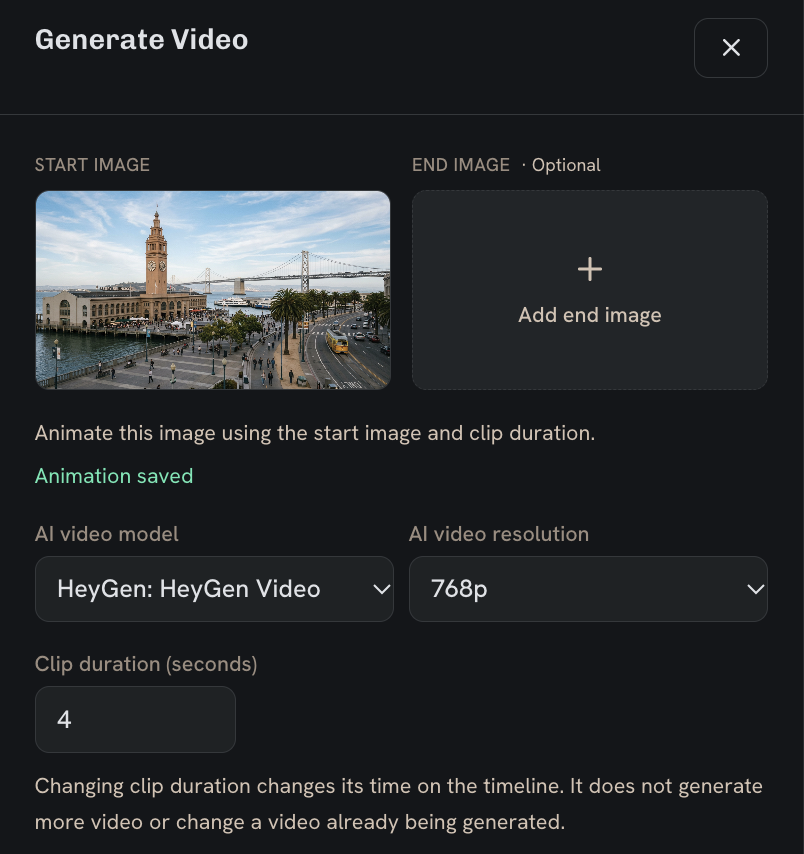
- Start image
Choose a start image and a video model, then set the duration and output format. End-image and audio support vary by model.
- Default format: 16:9 · 720p
- Duration: model-dependent
- FPS: not selectable
When your video is ready
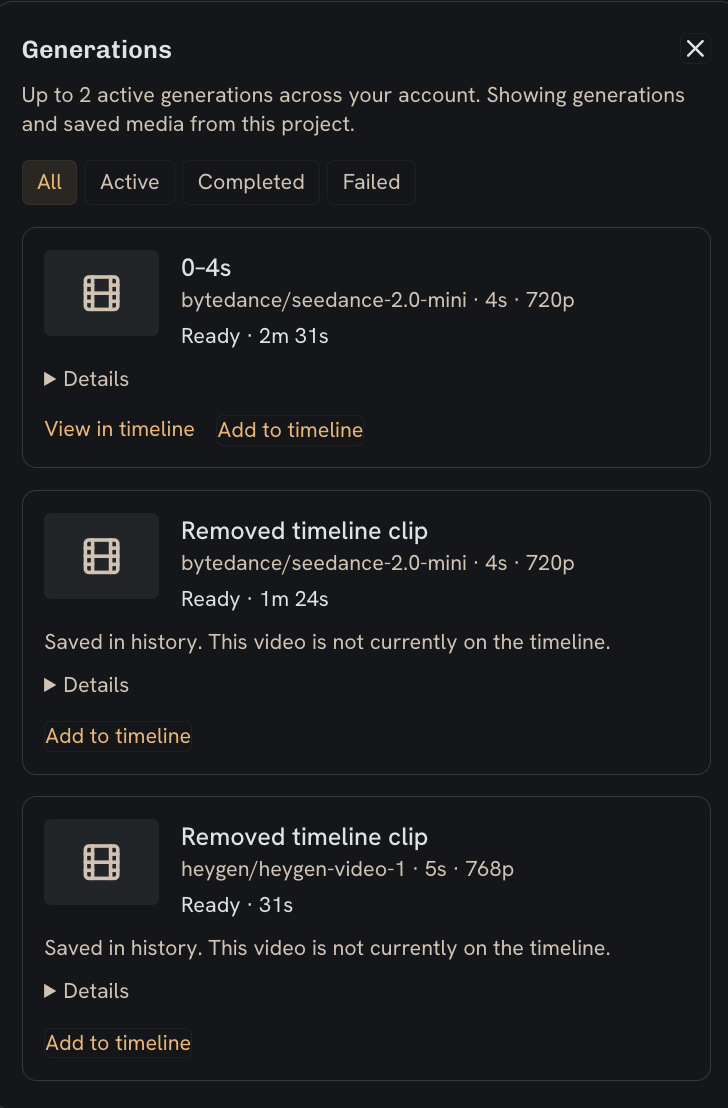
You’ll receive a notification at the top of the app when your video generation completes.
Video generation usually takes about 10 seconds to 2 minutes, depending on the video’s length. This is an estimate; some requests may take longer.
Assemble your clips
Add your generated videos to the project timeline in the order you want them to play. Drag a clip to change its position.
Drag the left edge of a clip to trim its start or the right edge to adjust its duration. Play the sequence to check each cut, then save your project.