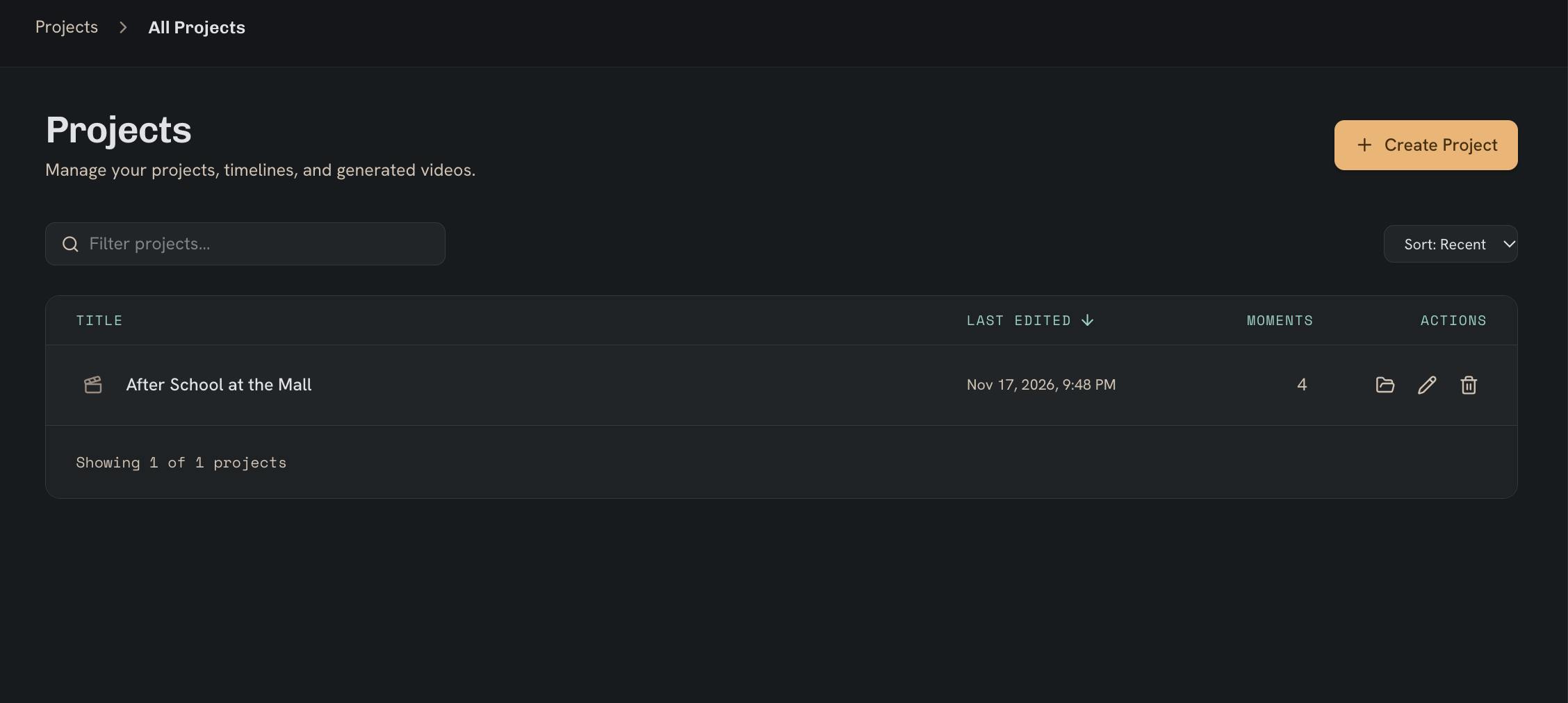
Create
Projects
Keep each project organized in its own workspace, and switch between projects as you create.
Open ProjectsApp sidebar → Projects
A workspace for each project
Projects help you keep track of specific work, such as a short film, a campaign, or an ongoing series. Each project has its own image generator and video timeline editor, so you can work on more than one project at a time and return to each one separately.
Images and Video in the sidebar are standalone creation tools. Open a project when you want to generate images and build a video sequence within that project’s workspace.
Create or open a project
Go to
- Projects
- New project
Open Projects and choose New project. Give it a recognizable name, then use its Style, Images, and Video areas to develop your work.
Return to the Projects page to open existing work or switch to another project.