Your characters. Your world. Across every scene.
Reuse your character and location references to create more consistent images and videos. Bring your clips together on a timeline, all in one intuitive workspace.
 01
 02
 03
 04
A reference you can keep building on.
Found the right look? Use an image you've already generated to guide the next shot—and the one after that.
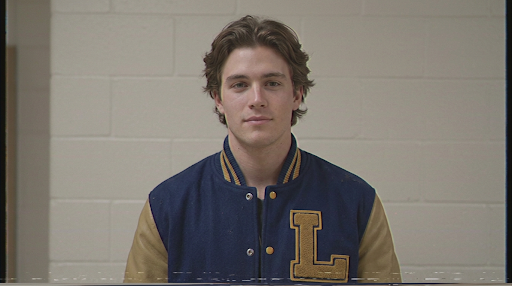
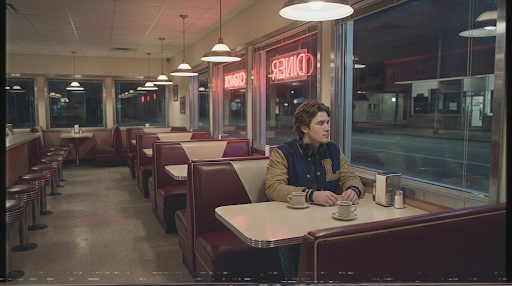
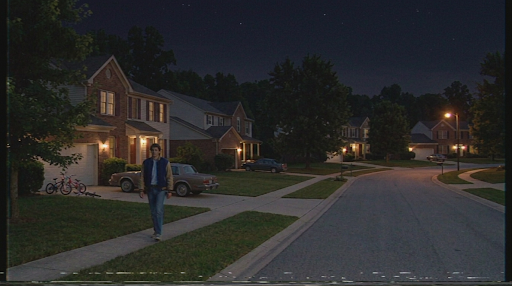
Alex
Use this image to guide Alex’s appearance in new shots.
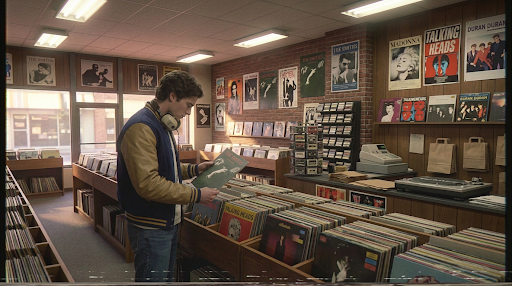
Alex browsing vintage vinyl. Warm shop lamps, amber backlight reflections.
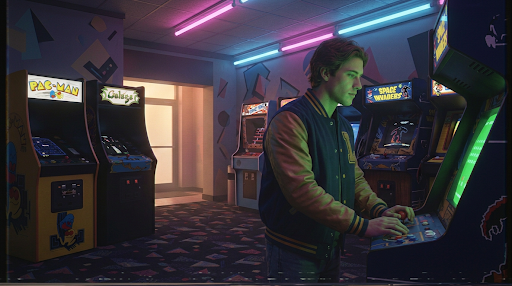
Alex playing under the arcade’s neon lights.
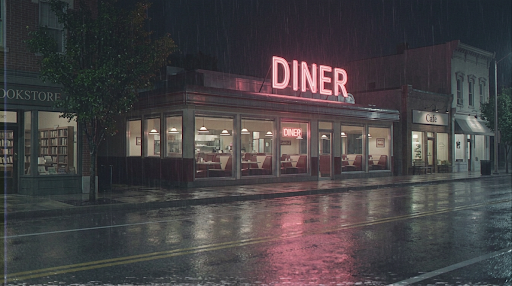
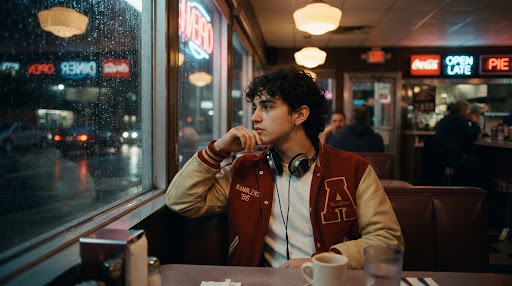
Alex sitting by the diner window on a rainy night.
From first image to connected story.
Keep your references, images, and videos together in one project as you build your sequence.
Establish your look
Generate or upload images of your characters and settings, then save them in your Reference Library.
Build on your references
Select character and location references to guide new images, then use your images to generate videos.
Shape the story
Arrange videos as clips on your project timeline. Keep their generation settings and references together as you edit.
Arrange clips in order. Trim the highlighted clip at either edge. Add audio underneath.
Give every moment its place.
Arrange your clips, trim their start and end points, and add audio to shape your sequence.
Arrange your clips
Move clips into the order you want without generating the videos again.
Trim the timing
Adjust a clip’s start and end points to keep the part you want.
Add audio
Place music, dialogue, or ambient sound alongside your clips.
Frequently Asked
Questions & Answers
How do I keep the same character across different shots?
Save a clear image of your character in the Reference Library and reuse it for each shot. Describe what changes, like the location, pose, or camera angle. The reference helps keep the character recognizable, though details can vary.
Can I start with my own images?
Yes. Upload a portrait, a location photo, or artwork to your Reference Library. For example, use a character portrait and a diner photo together to generate a shot of your character sitting in a booth.
How do I turn a still image into a video?
Choose your still as the start image, then describe what moves. For the diner shot, try “She sets down her coffee and looks out the window as the camera slowly moves closer.” Video guide
Can I change the timing without generating the video again?
Yes. Trim a clip, move it earlier or later, or rearrange the whole sequence on the timeline. Those edits use the footage you already have.
Do I need a subscription to generate images or videos?
No. You can buy a one-time credit pack or choose a monthly plan. Pack credits expire one year after purchase. Each month’s subscription credits expire one year after that paid billing period starts. Credits guide